Help
How to use Group Space
Updated 2026-08-06
Group Space is one private place for a class, team, or troop: who is in it, what is happening, the photos, and the conversation. It is invite-only and there are no ads.
Get the app. Group Space works in any web browser, but the iPhone and Android apps are the best way to use it. Same account and same group either way, so install the app whenever suits you.
There are only two ways in. Pick the one that sounds like you.
Starting a group
This takes about five minutes. You only do it once, and you can invite people straight away or come back to it later.
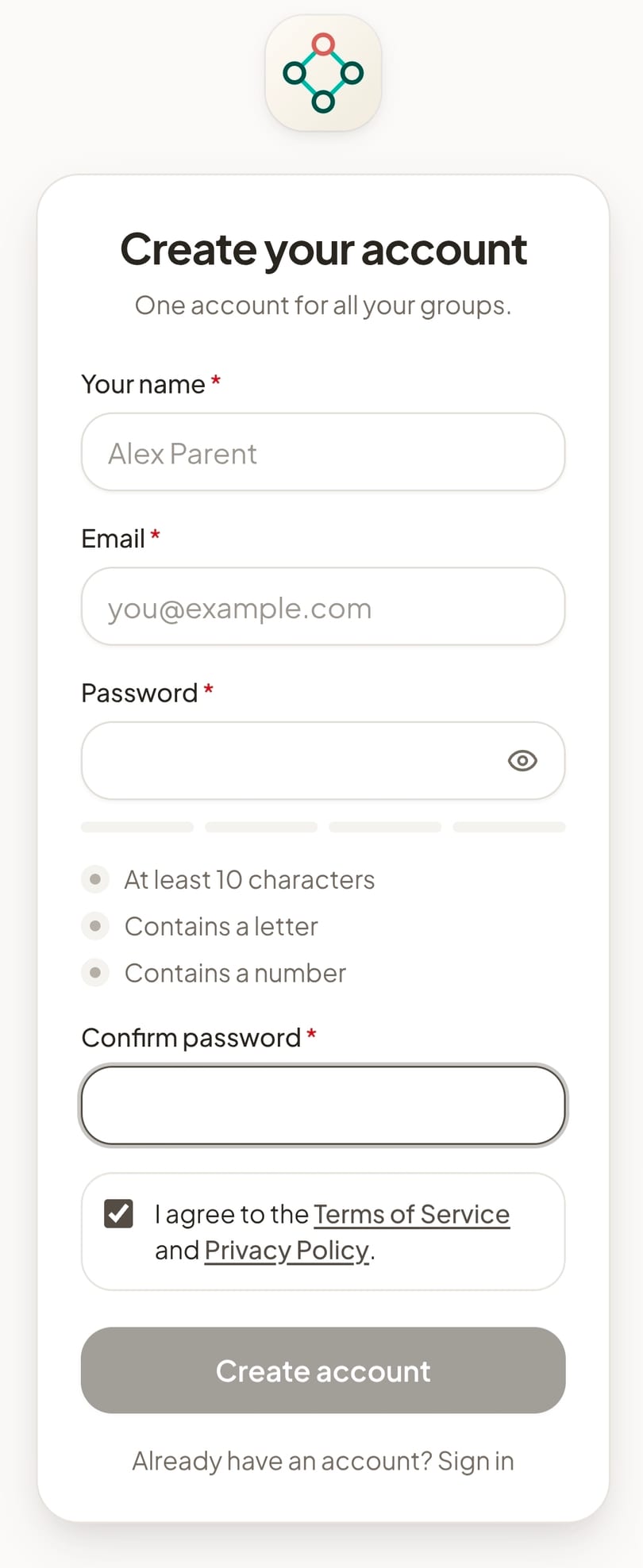
- Create your account. Open the app, or go to app.group-space.com in a browser. Sign up with your name, email, and a password. One account covers every group you join or run.
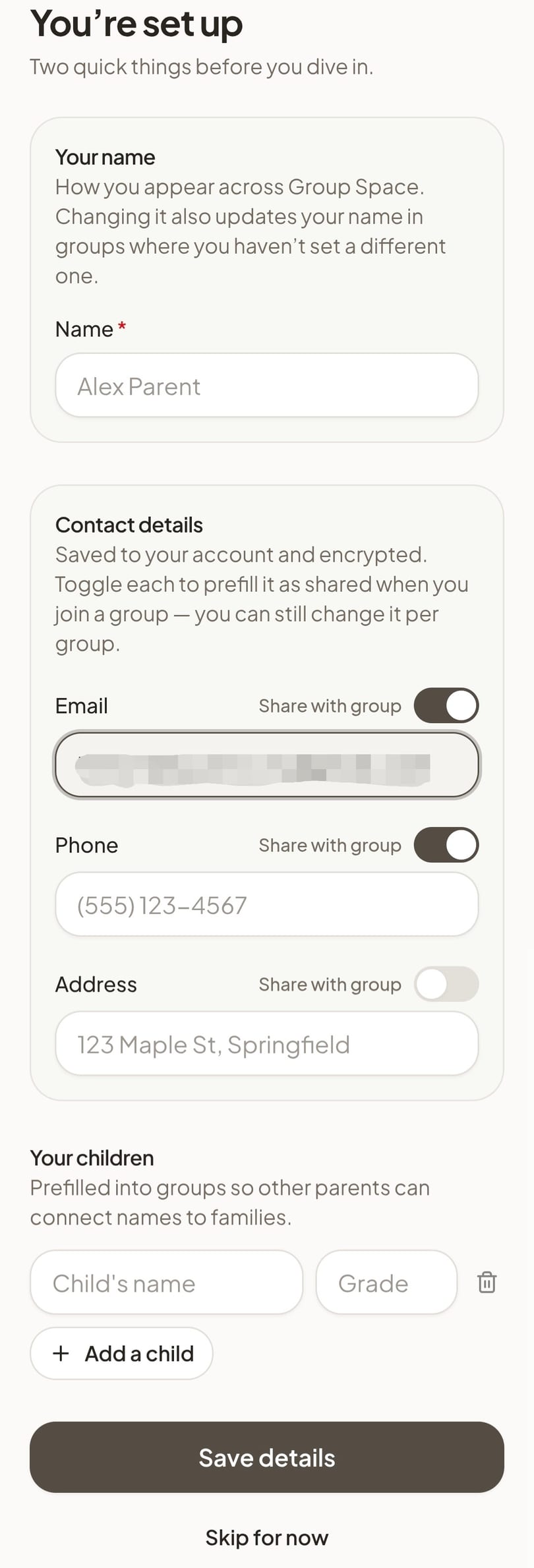
- Add your details. Add your phone number and anything else you are happy for the group to have. This is what populates the group directory, so it is worth doing now rather than skipping. Each field has its own Share with group switch, and you can change any of it later.
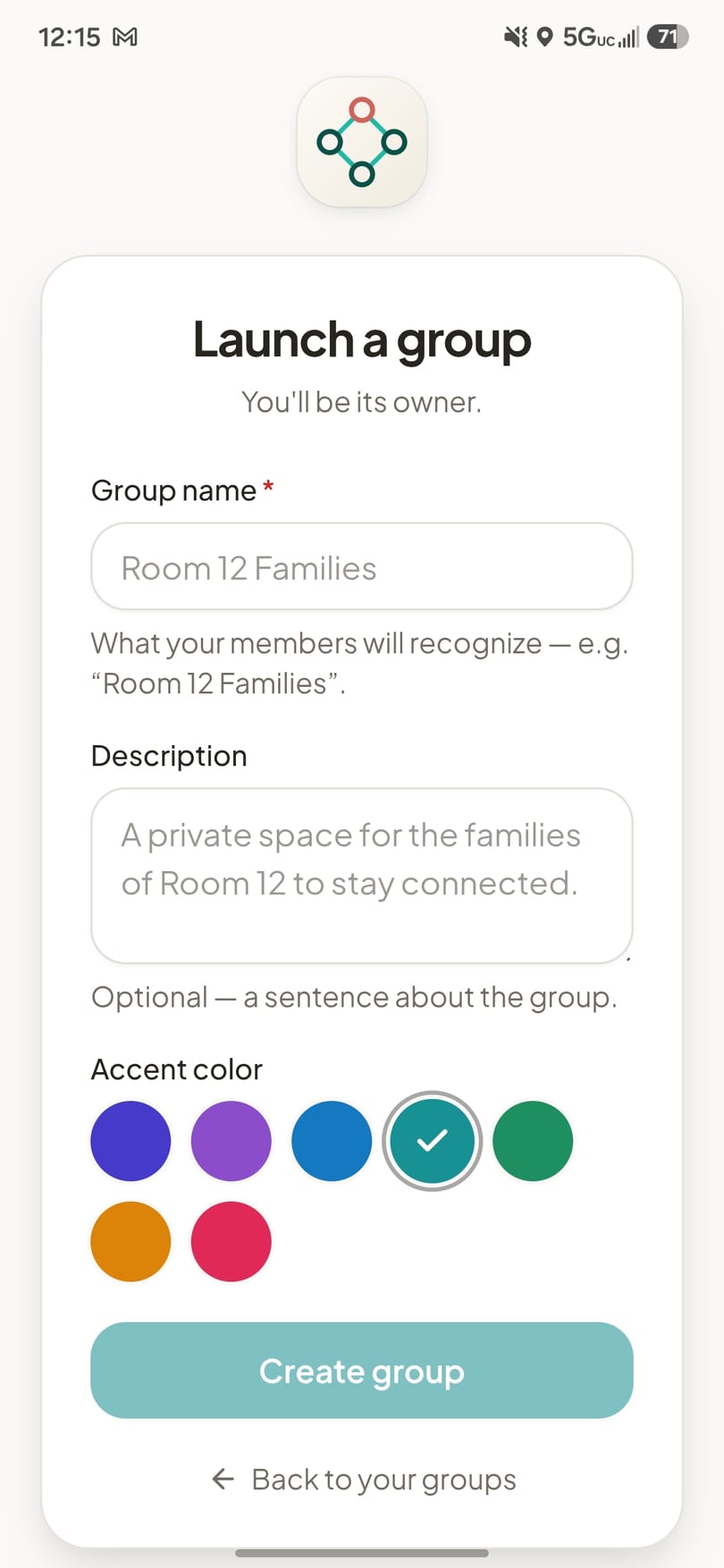
- Launch your group. Give it a name your families will recognise, like "Room 12 Families" or "U10 Ravens". A description and an accent colour are optional. You are its owner.
- Invite everyone. Open Members, then Invite. You get a link you can text or email, and a QR code you can show or print for your first meeting. Both do the same thing.
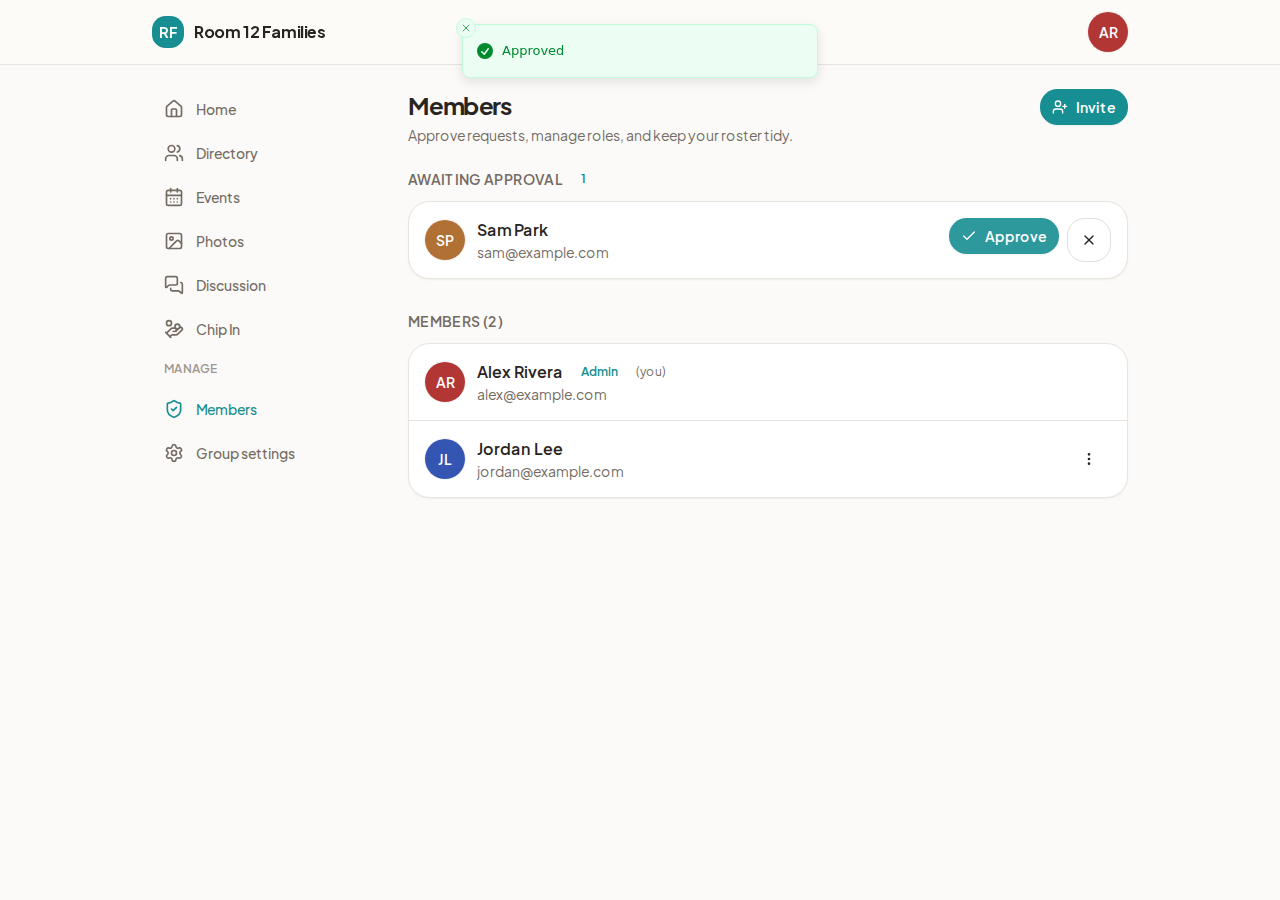
- Approve people as they arrive. Everyone who uses your link waits for you before they can see anything. Open Members and choose Approve next to each name you recognise.
That is the setup done. From here you can add an event, start an album, or post something to the discussion, in any order. Nothing else is required.
Everyone can add things, not just you
This is the part organisers are most often surprised by, so it is worth saying plainly. Every approved member can create events, start albums and upload photos and video, start a discussion and reply to one, and RSVP. None of that is reserved for you or for admins. You do not have to be the only person who ever posts anything, and a group where only the organiser adds things tends to go quiet.
You do not have to run it alone
You can make any approved member an admin. Open Members, use the menu beside their name, and change their role. An admin can do the day-to-day running of the group alongside you:
- invite people, and approve or turn down the ones who ask to join;
- remove a member;
- change the group's name, description, and settings;
- deal with anything reported in the group.
In practice that is everything you do week to week, which is the point: a co-leader, a team parent, or whoever picks up the slack when you are away can keep things moving without waiting on you.
What stays with you as the owner. Four things are yours alone: making someone an admin, handing the group to someone else, deleting the group, and the subscription. Everyone you invite joins free and always will, admins included. See pricing for what each tier includes.
Joining a group
Someone has sent you a link or shown you a QR code. You do not need to know anything about the app, and joining a group is always free.
- Open the invite. Tap the link you were sent, or point your phone camera at the QR code. There is nothing to install first.
- Create your account. Your name, your email, and a password. One account covers every group you are in, so you only ever do this once.
- Add your details. Add your phone number and anything else you are happy for the group to have, and your children's names if this is a class or a team. This is what populates the group directory, so it is worth doing now rather than skipping. Each field has its own Share with group switch, so you decide one at a time, and you can change any of it later.
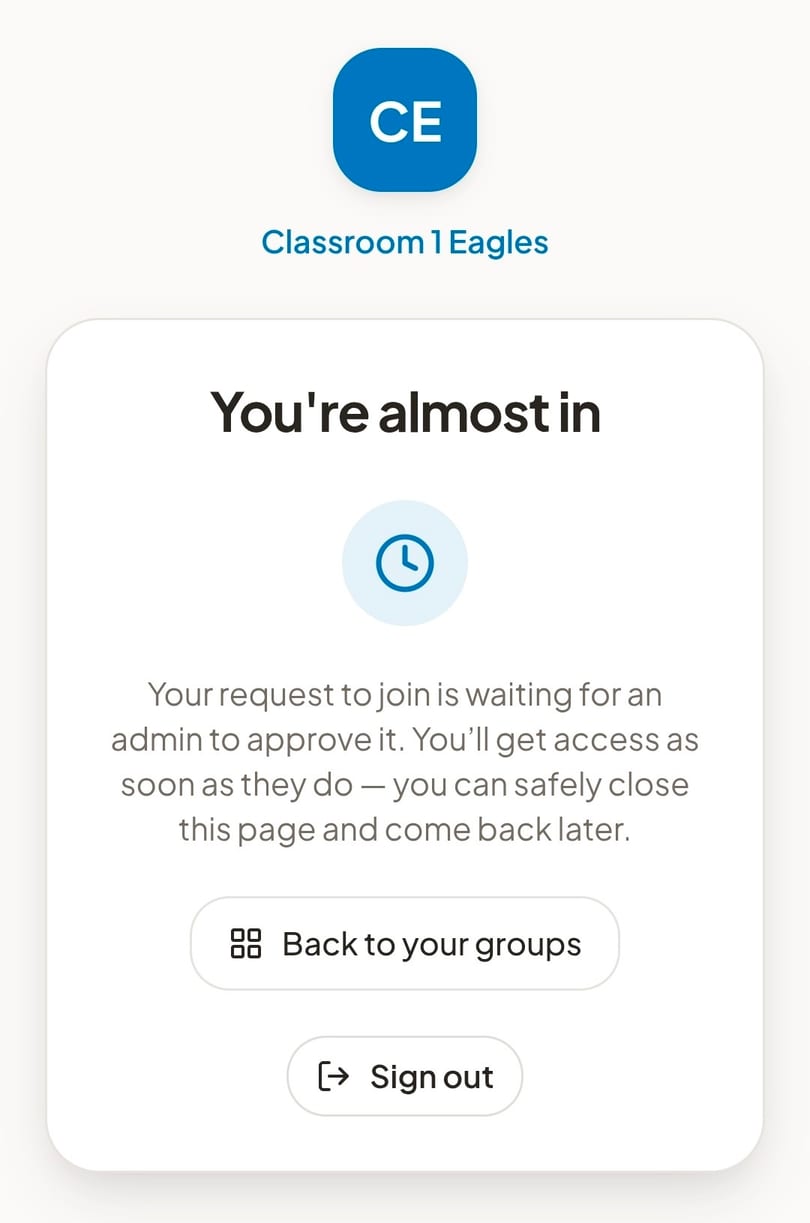
- Wait to be let in. You will see a "You're almost in" screen. An admin has to approve you, which is exactly what keeps the group private. You can close the page and come back later.
Who sees your details. Only the people in your group. Your contact details are encrypted on your own device before they reach us, so they are readable by your group and not by Group Space — we hold them as ciphertext we have no key for. They are never sold, never used for advertising, and never shared outside the group. The security overview explains how that works.
Once you are in, install the app. It is the same group either way, but the app is quicker to open, keeps you signed in, and can let you know when there is a new event or someone has posted. See getting the app for iPhone and Android.
You are a full member from the moment you are approved, not a spectator. You can add photos, create an event, start a discussion, and RSVP, the same as anyone else in the group.
If something goes wrong
Nothing happened when I opened the link
Invite links are long, so they sometimes get cut in half by a text message or a calendar app. Ask whoever sent it to send it again, or to show you the QR code instead.
I signed up but I still cannot see anything
You are waiting for approval. Only the organiser can do that, so give them a nudge. Everyone starts here, and it is not something you did wrong.
I forgot my password
You can reset how you sign in, but there is a catch worth knowing: your password is what unlocks the group's content, and we do not keep a copy of the key. After a reset an organiser has to approve you again to hand it back. This is the trade we make for a group nobody outside it can read, including us. There is more on this in the security overview.
I want to leave, or delete my account
Both are yours to do at any time, from inside the app, without asking anyone. The delete your account page has the exact steps and says plainly what is removed and what is kept.
Still stuck
Email [email protected] and a real person will read it. Telling us your group's name and what you were trying to do gets you a useful answer faster. More answers are on the support page.